After you create a new checklist, you will immediately be redirected to the form input user interface, where you can add sections and questions to your checklist, and configure all the settings for the checklist.
The sections on a checklist are used to group questions together in a logical way. For example, you might have an Exterior section, Interior section, Cash Counter, Coolers, Fuel Pumps, or similar... you will use labels that make the most sense for your organization and users.
Section-level scores are based on the responses to the scored questions in each section.
When you create a new checklist it will, by default, have one Main Section.
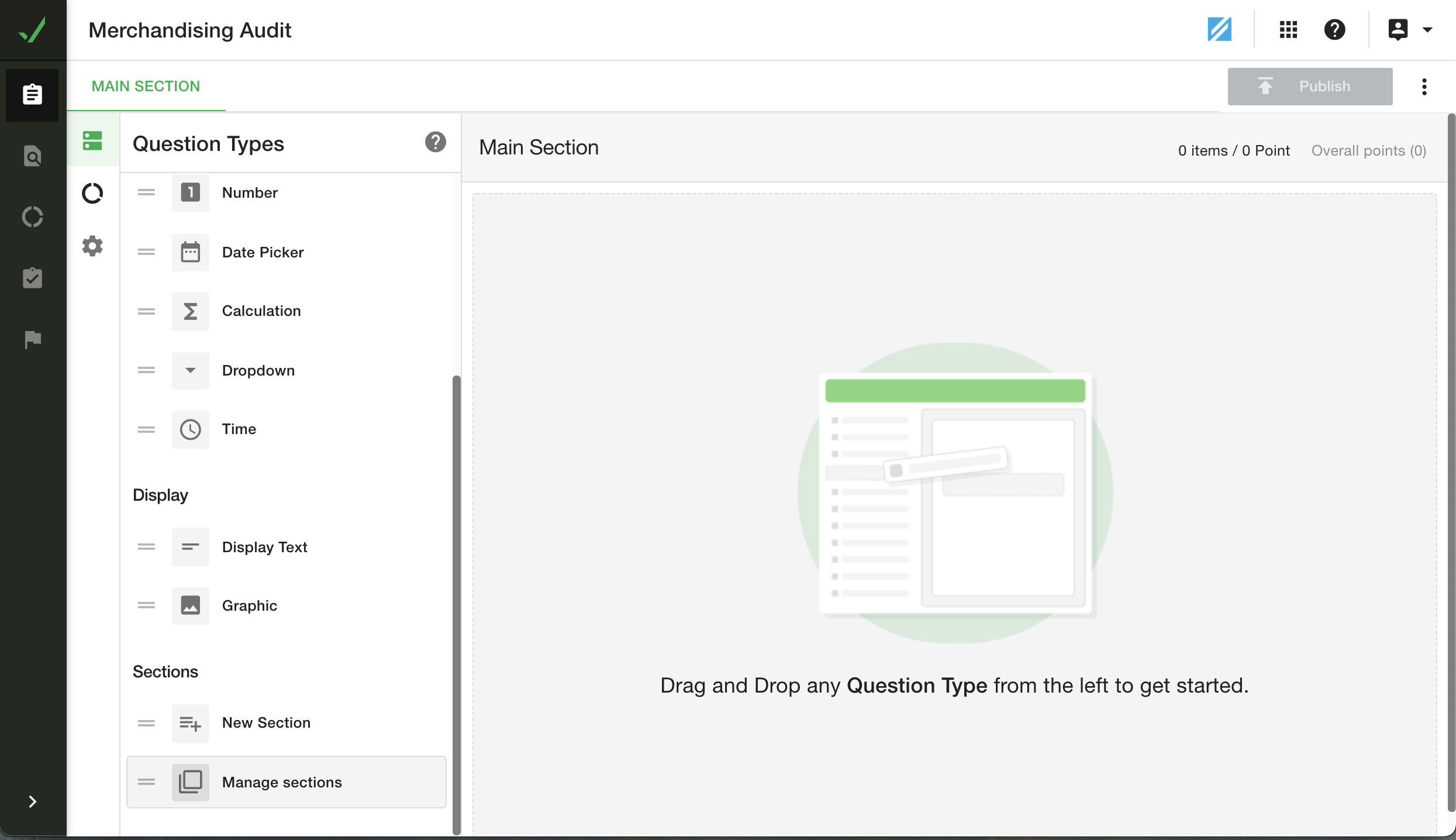
Click on the Manage Sections icon located at the bottom of the 'Question Types' panel.

From this screen you can:
- Create a New Section
- Move a Section (when more than one section exists)
- Edit a Section
- Disable a Section
- Duplicate a Section
- Delete a Section
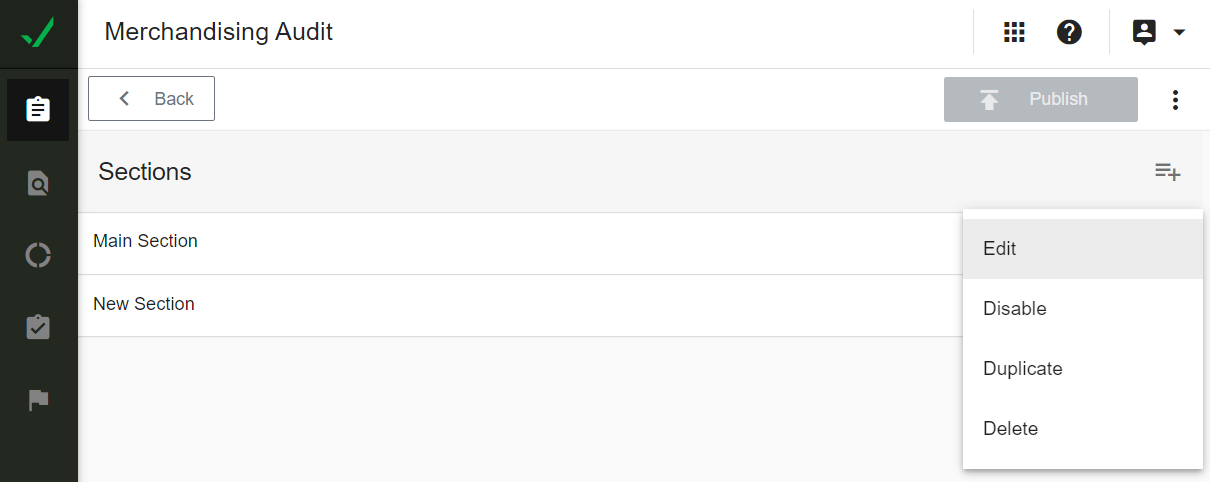

Click on the highlighted button to Create a New Section
Click on the highlight button to move the selected section up/down the checklist
Create all the sections you will need for your checklist, then click on < BACK to return to the form input screen and proceed with adding the questions to each section.